Path Analyzer
The Path Analyzer provides a list of distinct stage by stage journey paths, showing the progression from one category to the next within each path. It is similar to the Event Analyzer, except that the Event Analyzer shows all paths in a holistic view and ranks the most frequent categories within each stage. In contrast, the Path Analyzer separates the paths out and allows whole end-to-end paths to be ranked by frequency.
By default, the Path Analyzer shows the most frequent paths overall, but it can also be filtered to show the most frequent paths containing specific categories. Use this gadget in its unfiltered mode to get a feel for the typical paths that customers follow, like the typical customer experience. Use the gadget in filtered mode to understand the most common journeys that include an escalation or other events of interest.
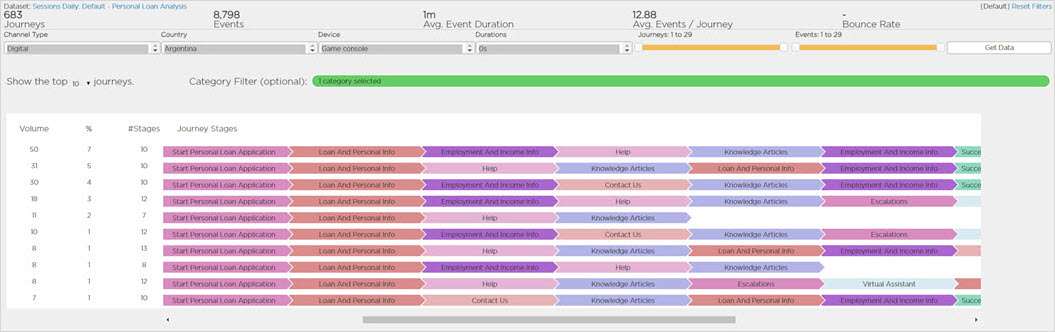
The Path Analyzer gadget presents the following information:
- Journeys: The number of visits to the website (in the case of web journeys) and calls within the IVR (in the case of IVR journeys).
- Events: Events are the individual steps which a journey consists of. For a web-based journey, these are page views or form submissions. For IVR-based journeys, these are the discrete steps or decision points within the IVR flow.
- Average Event Duration: The average time that elapsed from one event to the next. Expressed in minutes and seconds (mm’ss”). Bounces are excluded since they only consist of one event.
- Average Events / Journey: The average number of events (for example, page views or IVR steps) which each journey consisted of. This can be an indicator of customer effort.
- Bounce Rate: The number of journeys where the customer did not proceed beyond the first event (for example, the landing page of the site or the 1st set of IVR options). This is expressed as a percentage of the total number of journeys.
Reading the List of Paths
The main area of the gadget shows the top N paths (filtered or unfiltered). The paths are listed vertically, and the stages present within each path are listed horizontally in the sequence that they occurred from left-to-right. If a category is revisited at different stages within the sequence, then each occurrence of it is shown. Since end-to-end paths often run off the screen to the right, some horizontal scrolling may be required to read them.
.jpg "Metrics compared to the Journey Stages")
To the left of the list is a table of metrics for each path. This remains on-screen even if the list is scrolled to the right. The metrics shown are:
- Volume: The number of journeys which took place that match this path (i.e. match the displayed sequence of stages) and any applied filters.
- %: Of the total number of journeys which took place that match the applied filters, the proportion which match this path (i.e. match the displayed sequence of stages).
- #Stages: The length of the journey in stages.
There is an option to select the number of paths to display (top 10 by default) just above the list of paths. The % column is unaffected by this, as it shows the percentage out of all matching journeys, not only the displayed journeys. Due to this, the percentages of the displayed paths may not add up to 100%.
Filtering Paths of Interest
You can refine analysis with the interactive filtering across the top of the gadget. Each time you make a change to the filtering, click Get Data to refresh the gadget. These filters still apply even if they were set on a different gadget. Only journeys matching these filters are counted and displayed by the Path Analyzer:
- Date from/to (available by selecting the Toggle Filters option in the Gadgets drop-down menu).
- Channel Type
- Country
- Device
- Durations
- Journeys (frequency)
- Events (per journey)
In addition, the Path Analyzer allows you to set a category filter which applies only within this gadget. This option appears just above the list of paths.
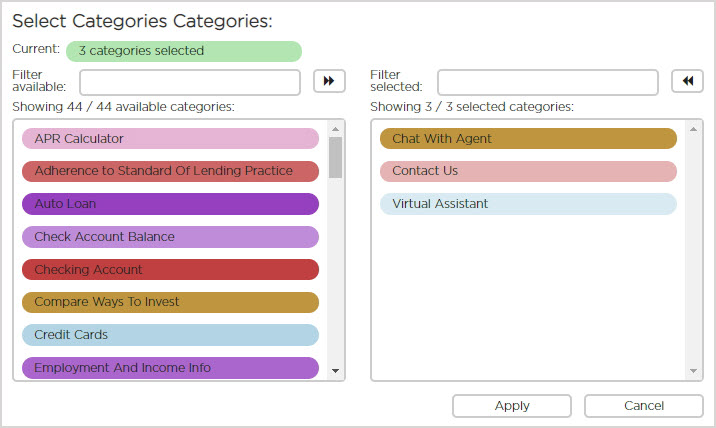
Clicking the Category Filter displays a dialog which allows you to select one or more categories from the list on the left to add to the list on the right. Both lists are searchable. Once all categories of interest are selected click Apply. The path list is filtered to show and count only paths which contain one or more of the selected categories.